The SSH service supports identity verification using either a password or a key. Keys are more secure than passwords, help protect servers against brute-force attacks, and are convenient for automated scripts and tools. In addition, public-key encryption algorithms are generally more resistant to man-in-the-middle attacks than password-only authentication because public-key encryption requires a handshake and certificate verification between both parties.
Currently, the Linux servers on this site only support key-based authentication, which is also our recommended method. This article explains in detail how to use SSH clients (such as Termius, XShell, and the BT Panel) to log in to a server, as well as how to change the authentication method from key-based authentication to password authentication.
How to Connect to a Server Using XShell on Windows
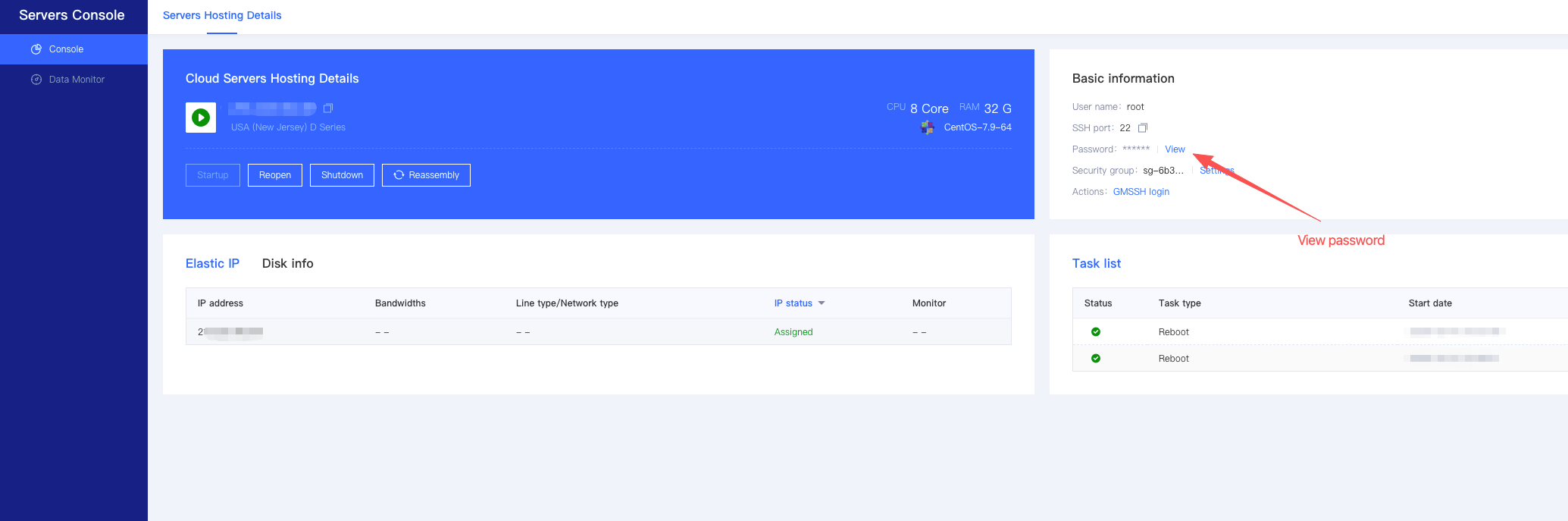
1. Download the root.key file through Control Panel>Reset Password
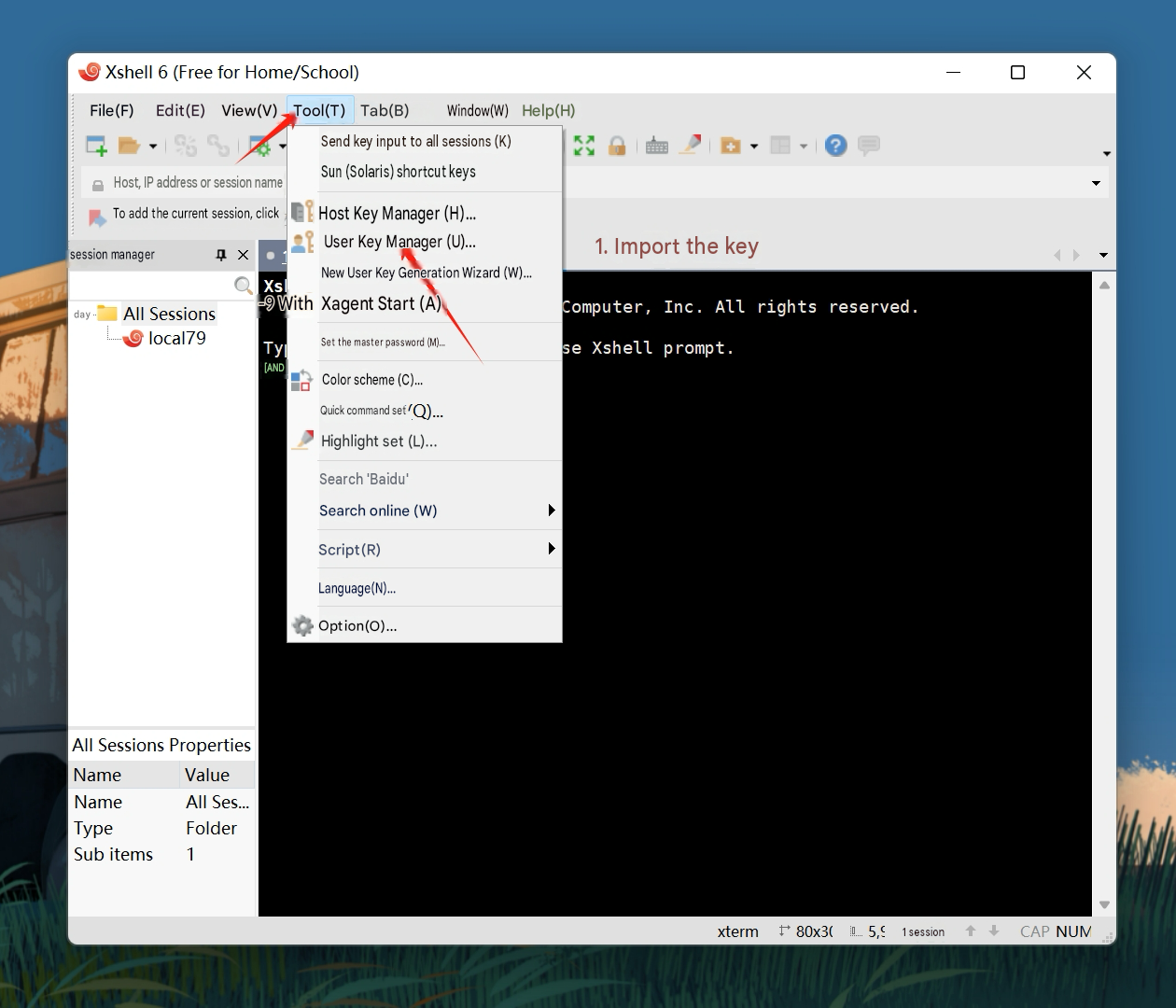
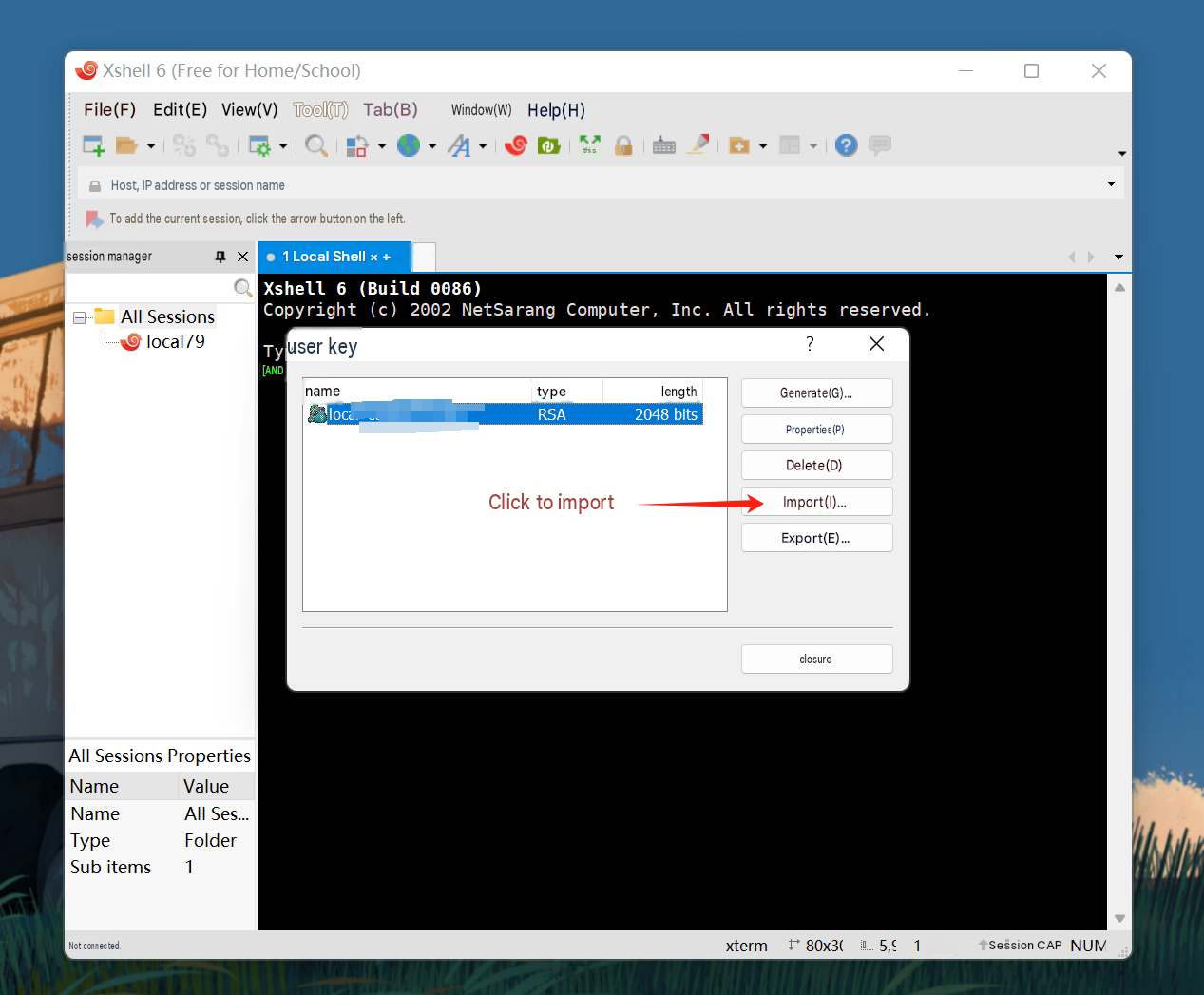
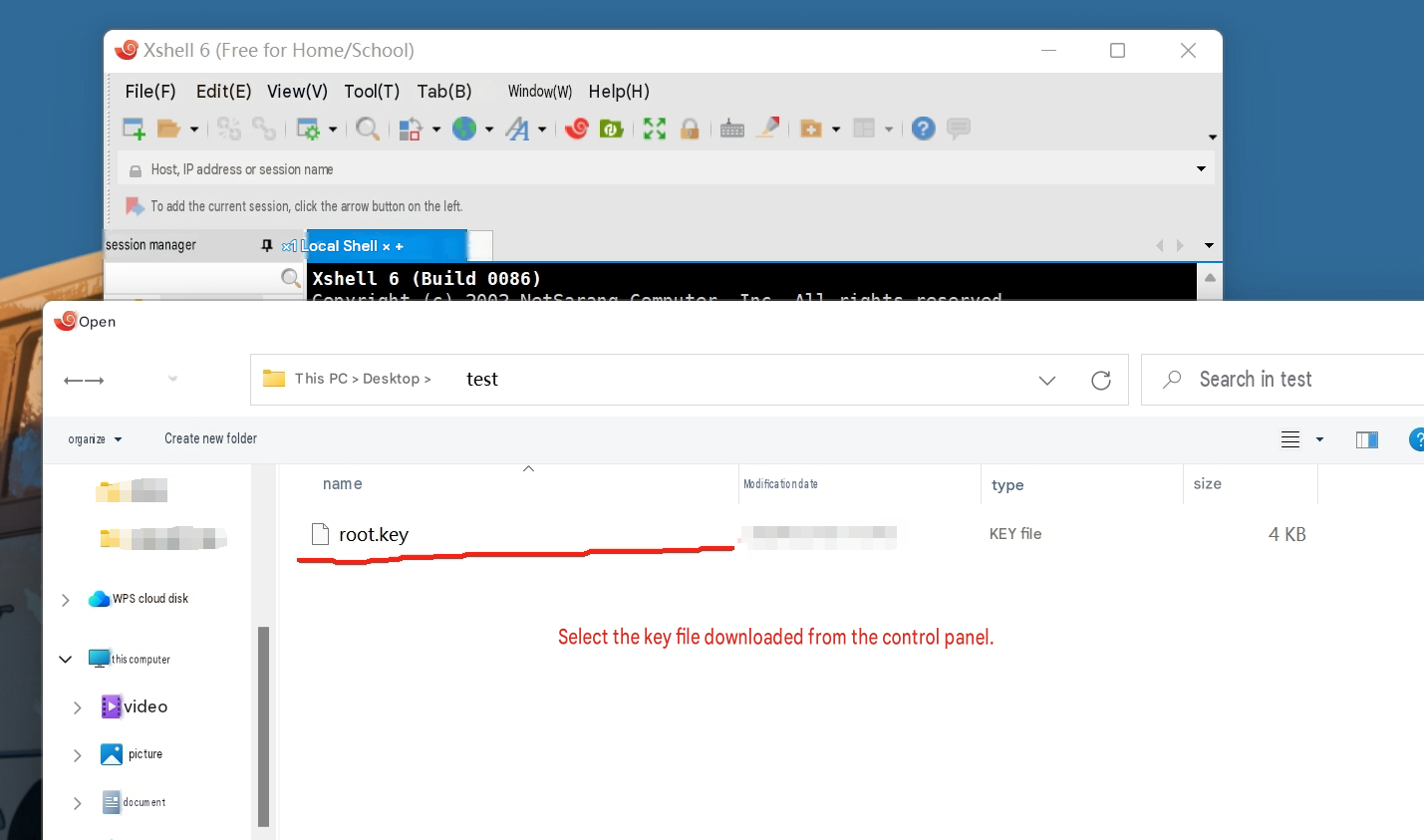
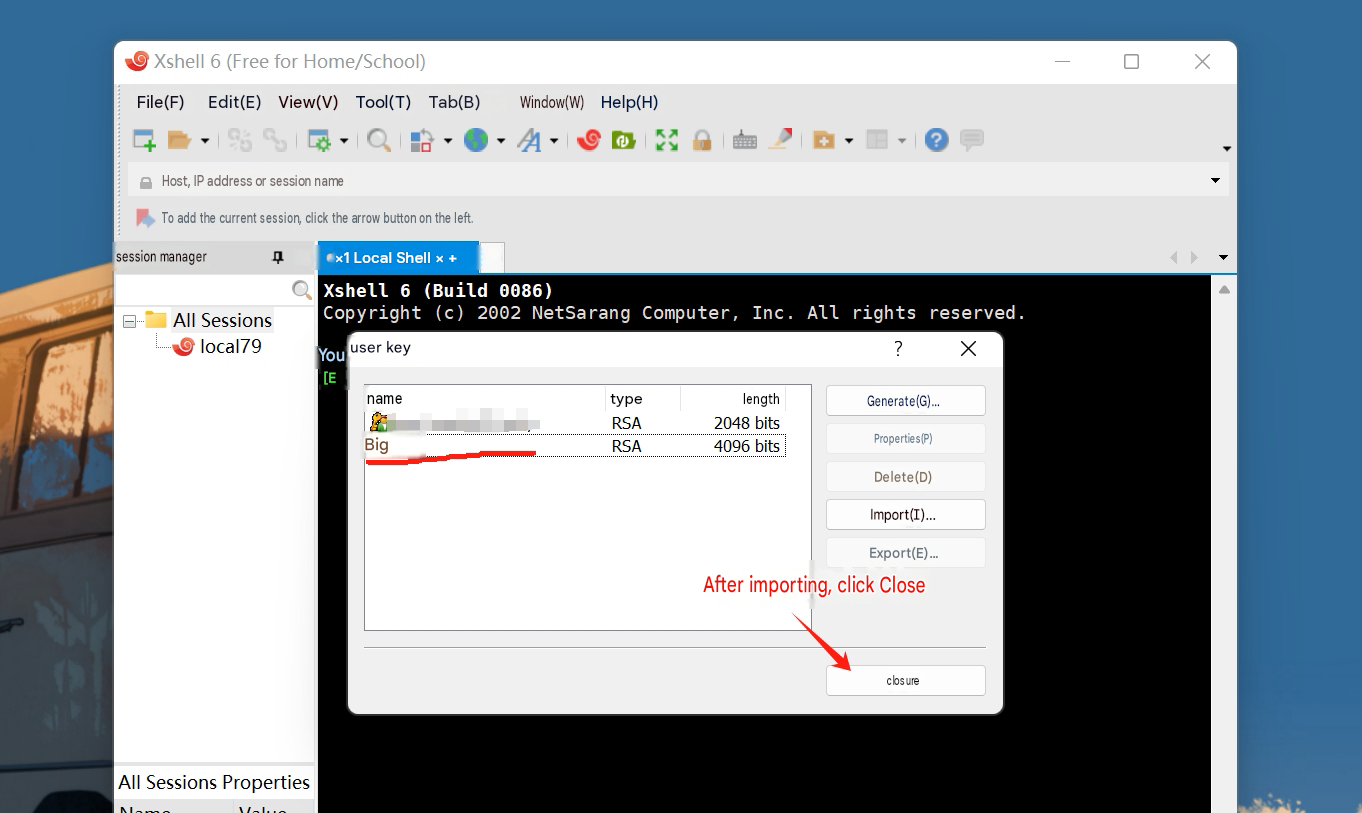
2. Import the key into the User Key Manager
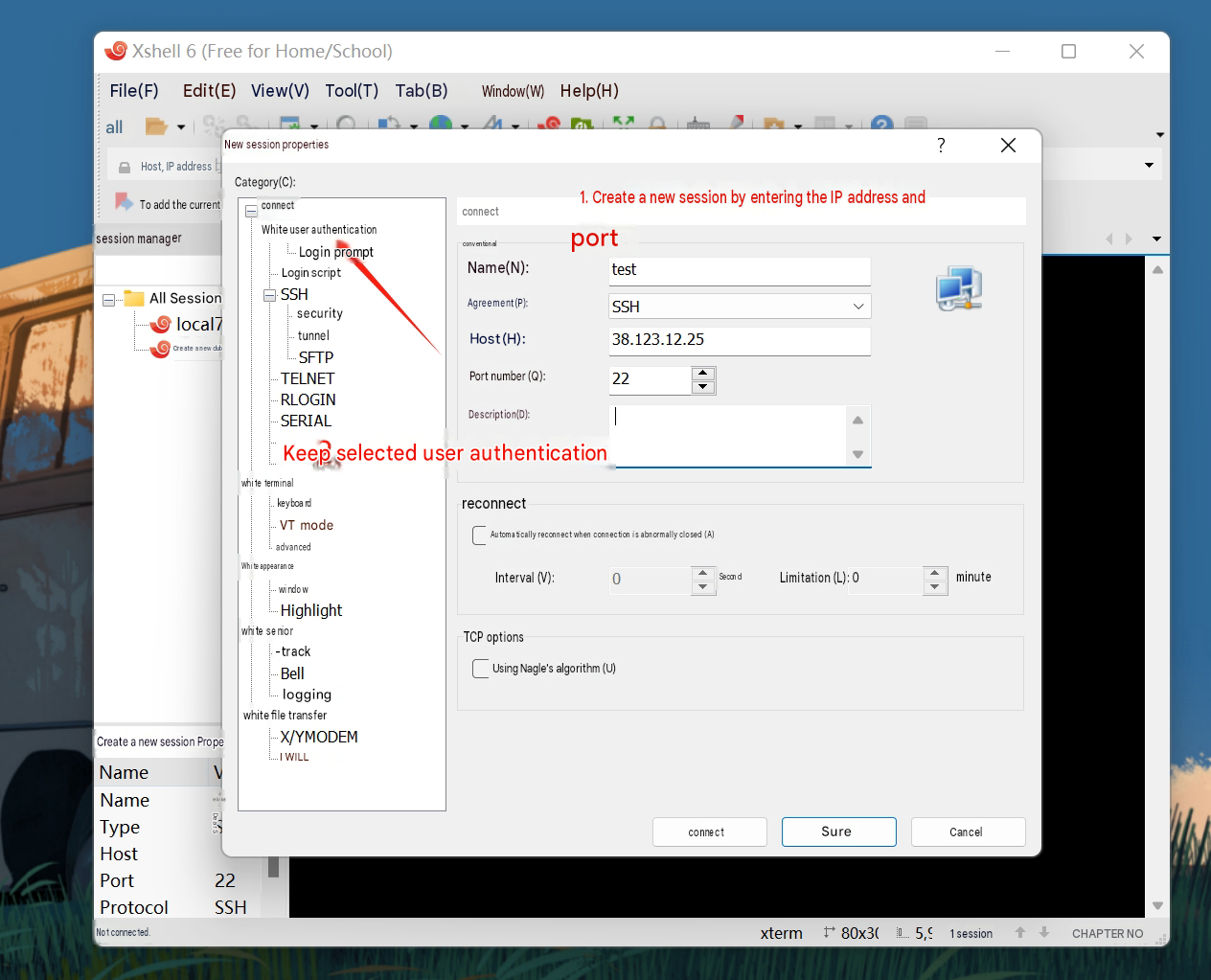
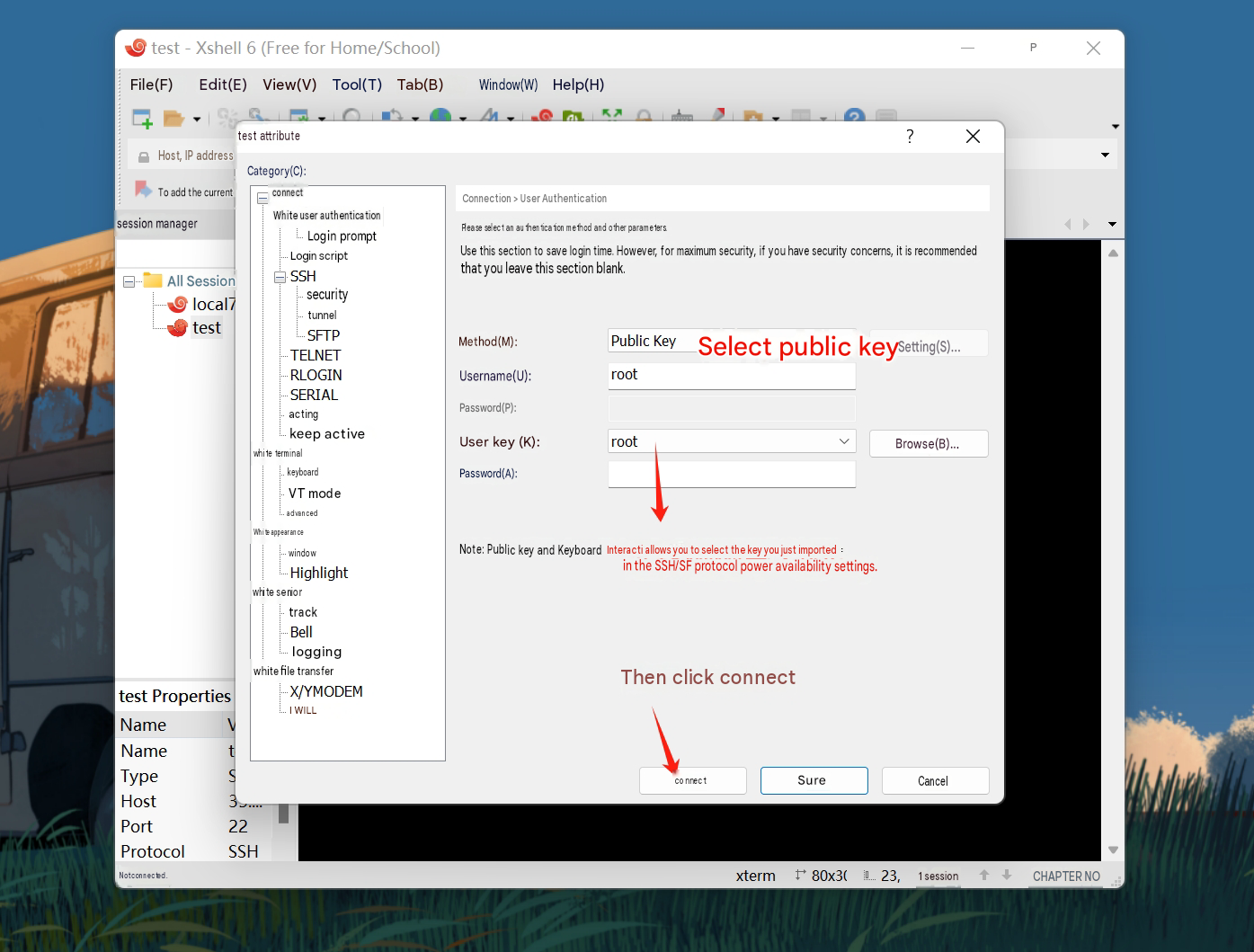
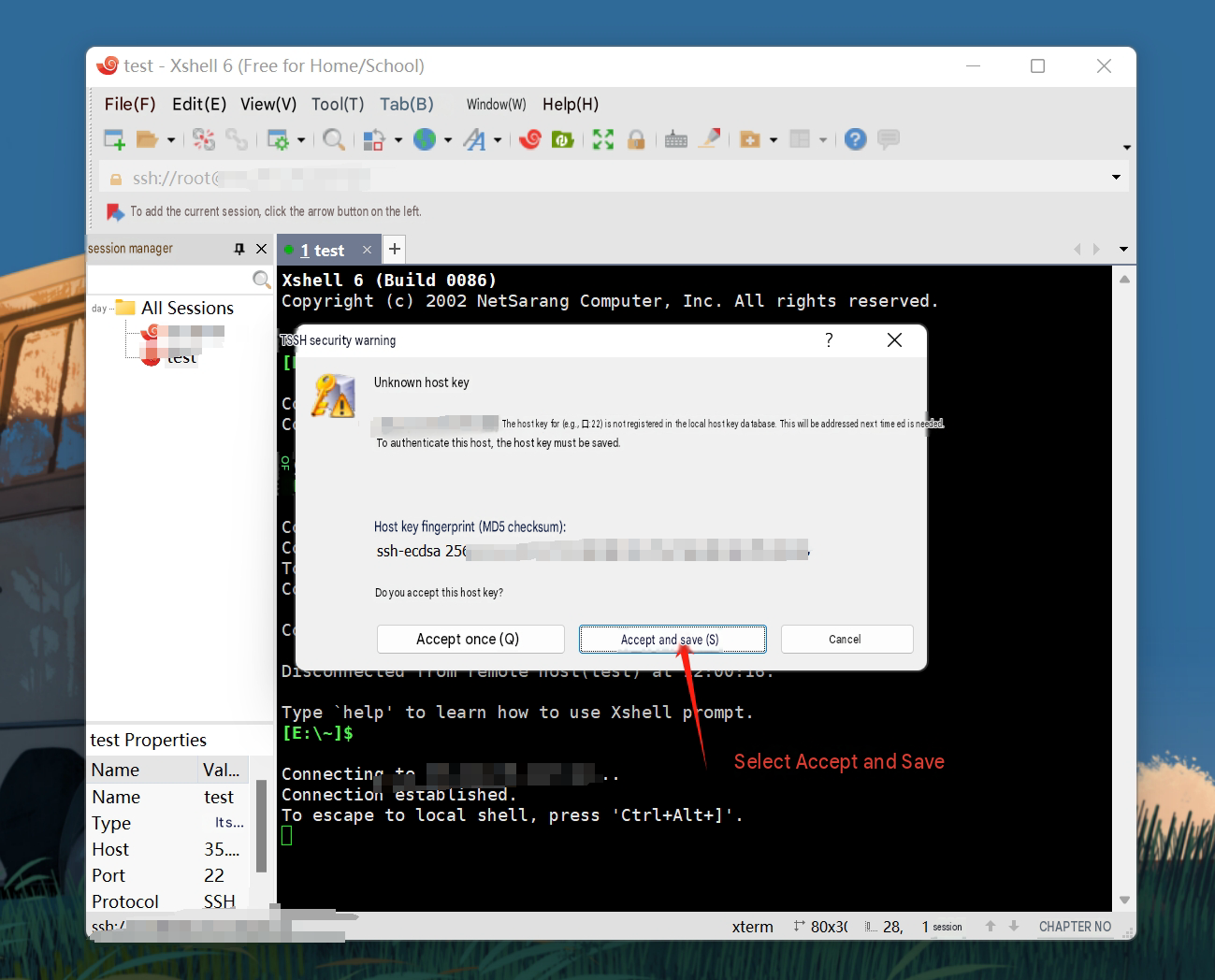
3. Create a session and select the imported key
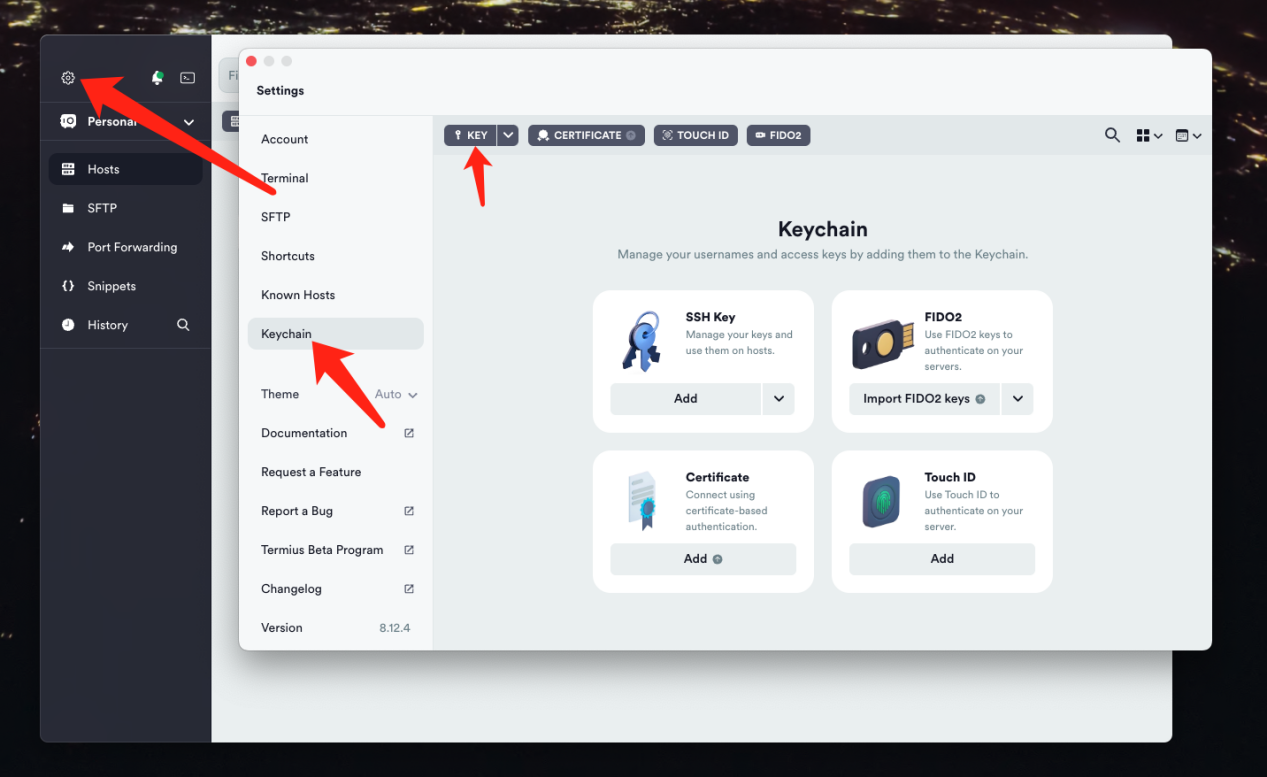
Connecting to the SSH Service Using Termius on macOS
1. Import the key file into Termius
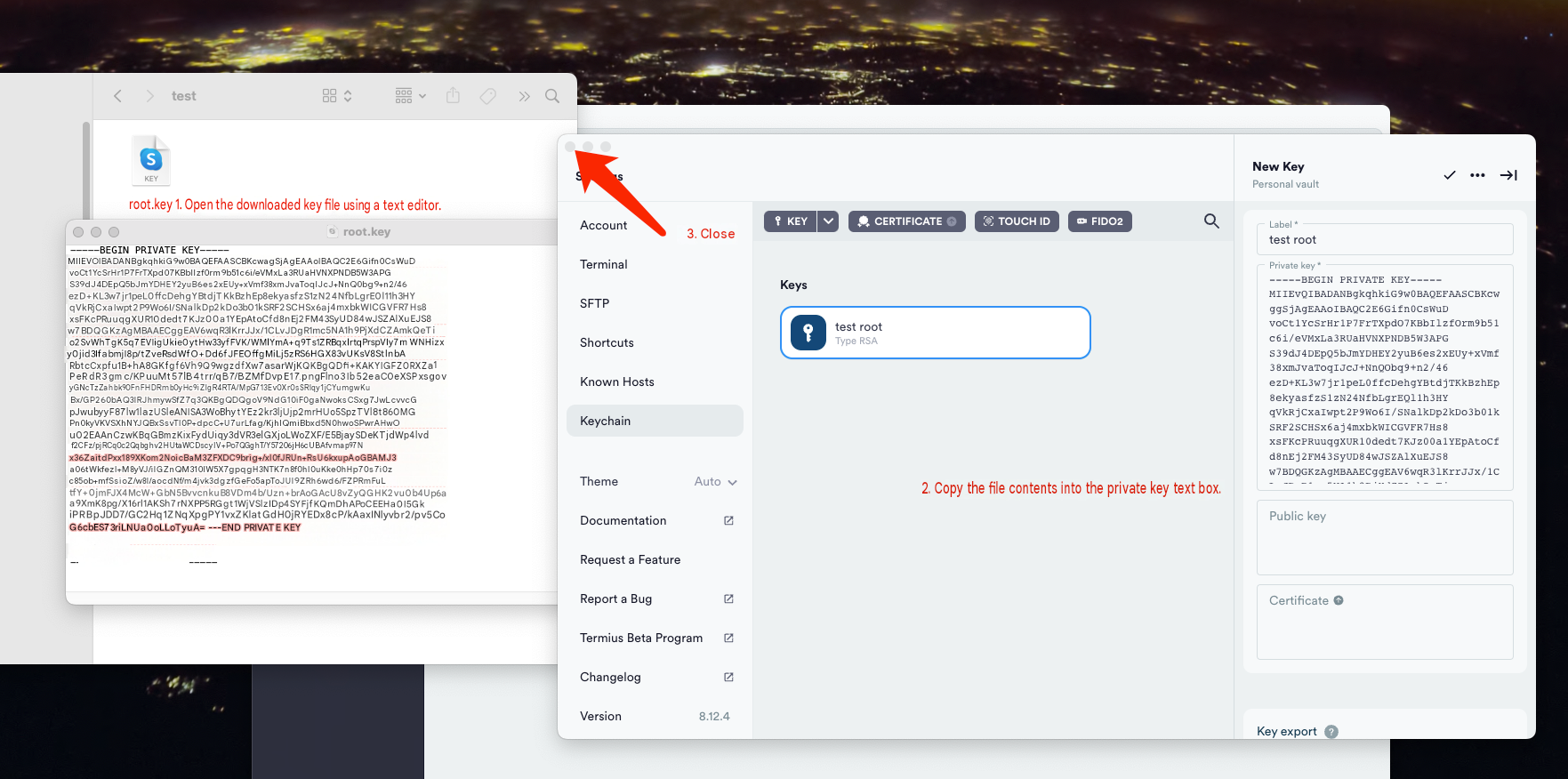
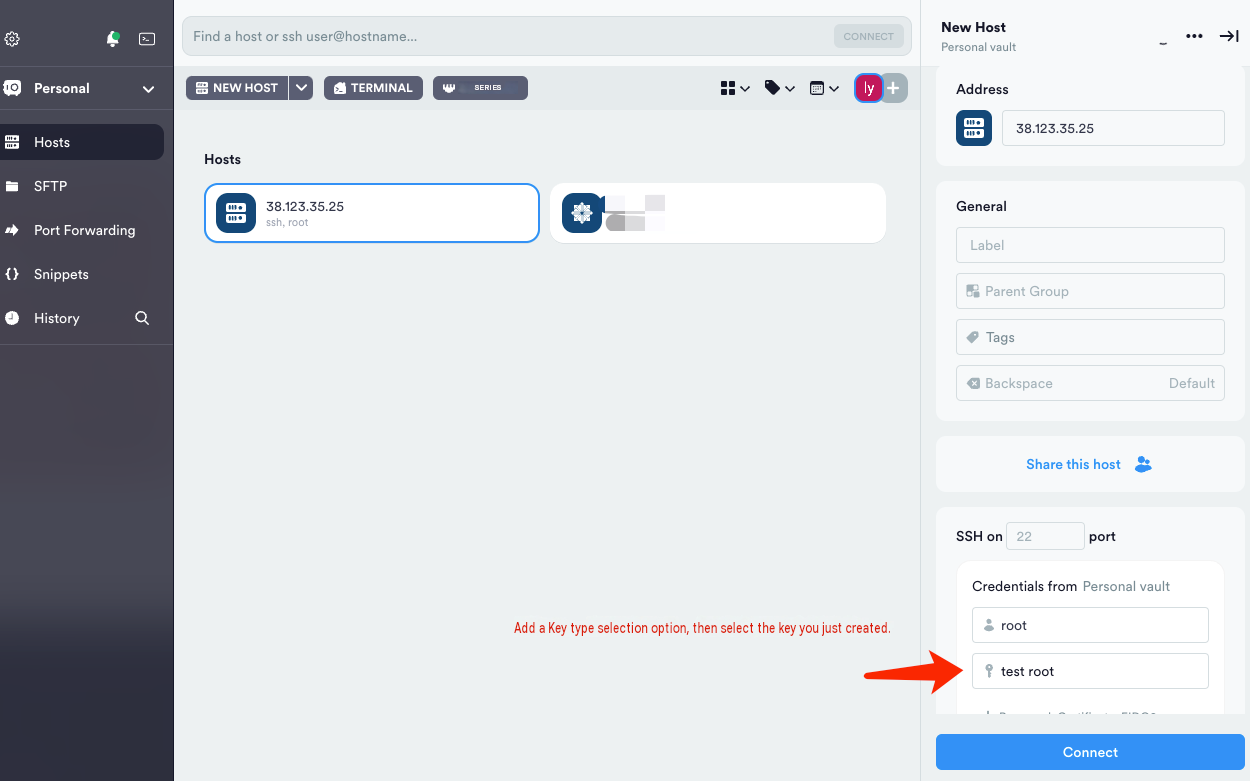
2. Log in to SSH using the private key
How to Install the BT Panel Online Using a Key
1. Open the official BT Panel website(https://www.bt.cn/new/download.html)
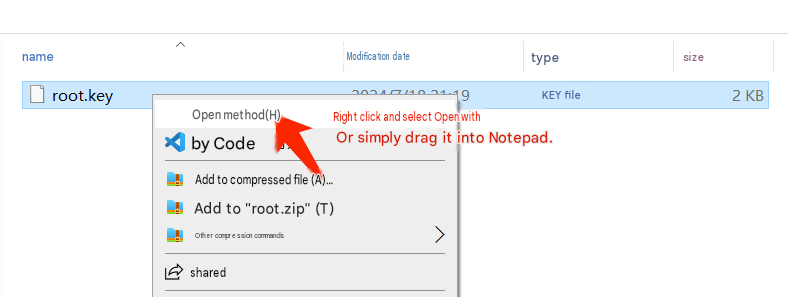
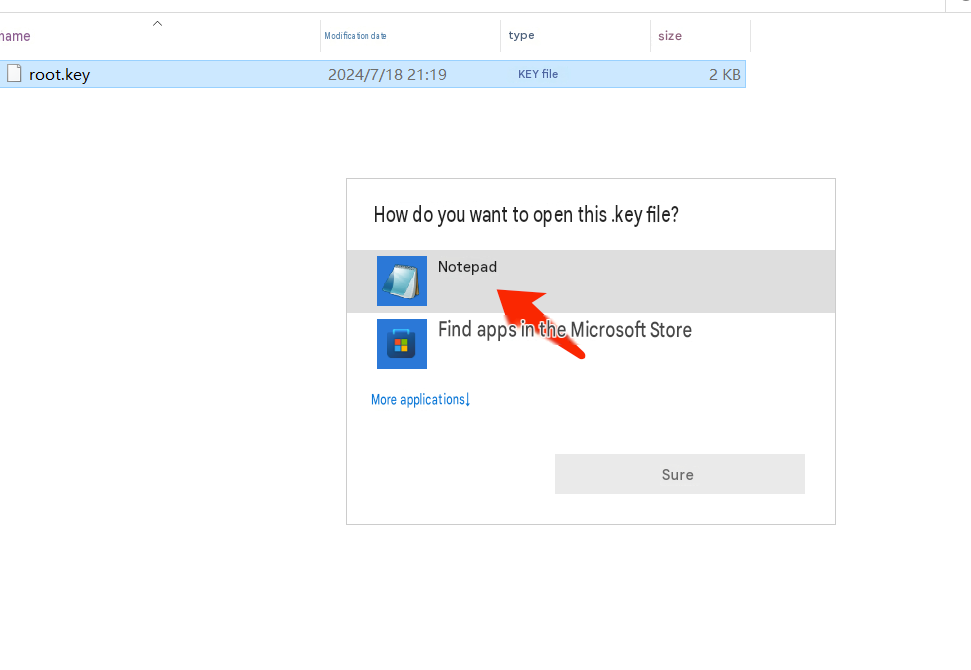
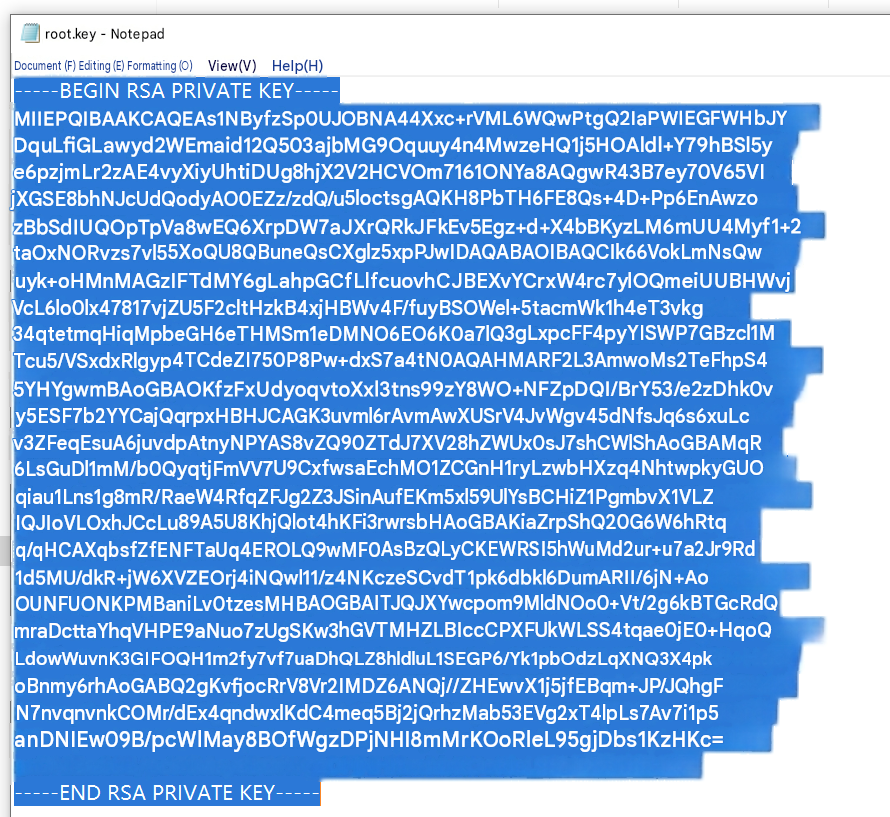
2. Open the key file (root.key) with Notepad, select all, and copy the key content
Connecting to the SSH Service Using PuTTY on Windows
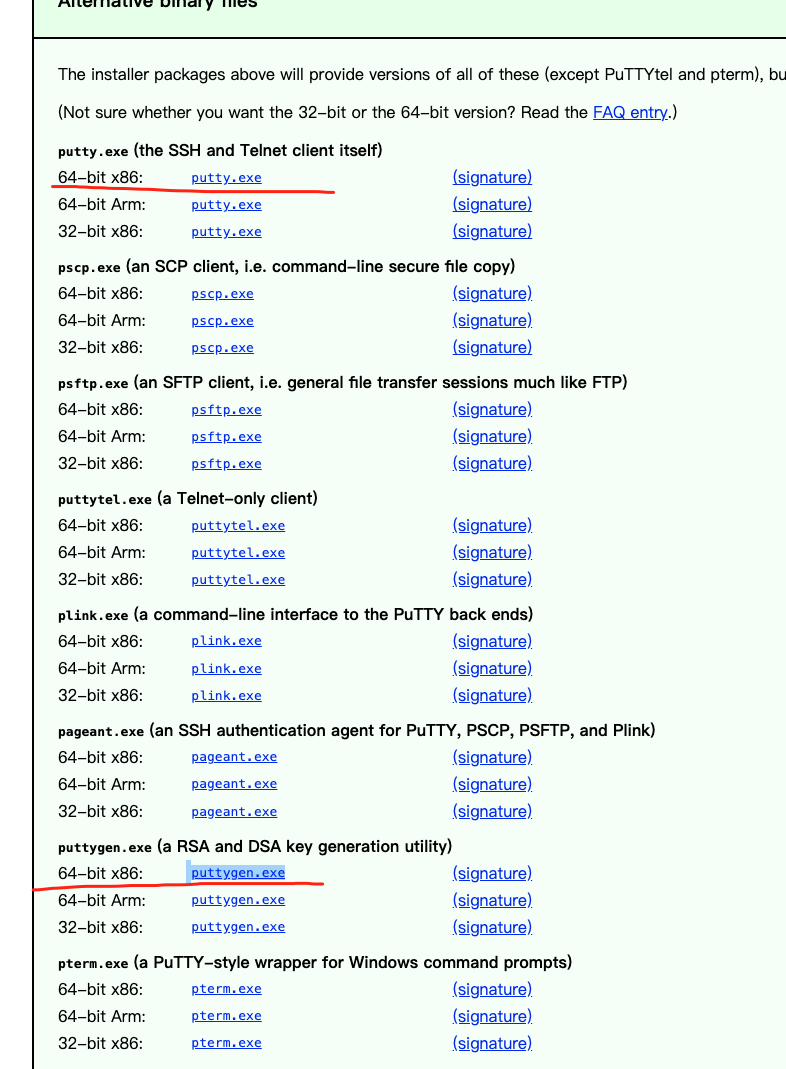
1. Open the official PuTTY website(https://www.putty.org/), select Download PuTTY, and download and install putty.exe and puttygen.exe, as shown below:
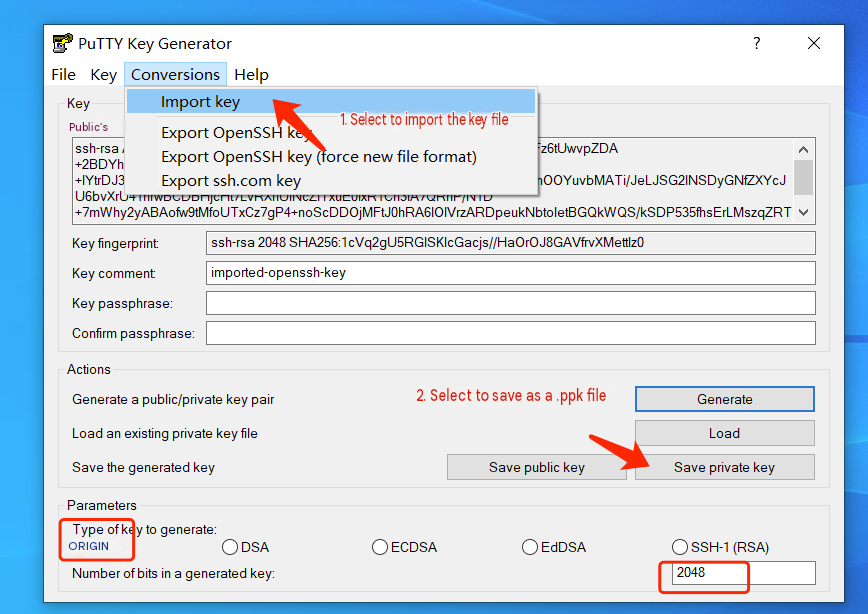
2. Run the puttygen tool and convert the key file into a ppk file
3. Run putty.exe and enter the IP address and port
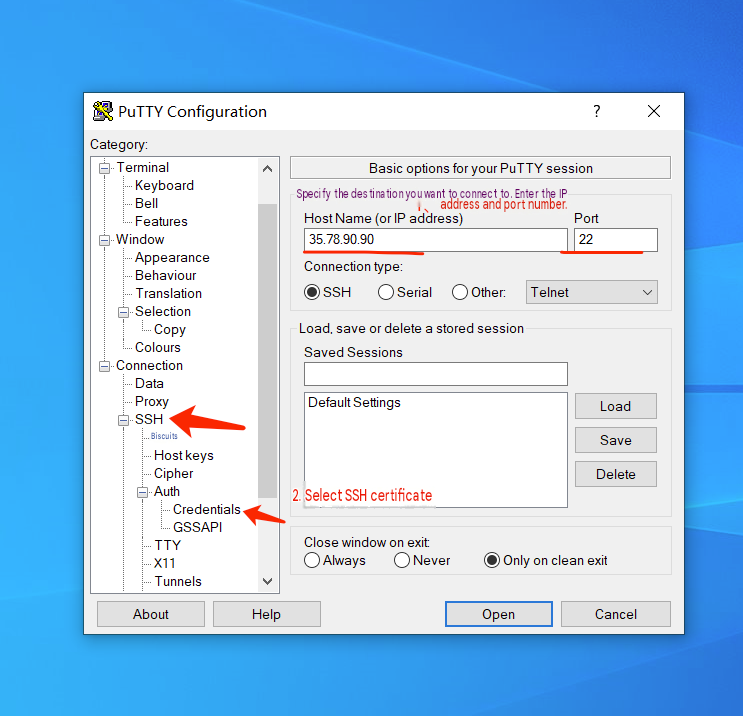
4. Select the ppk file that was just converted
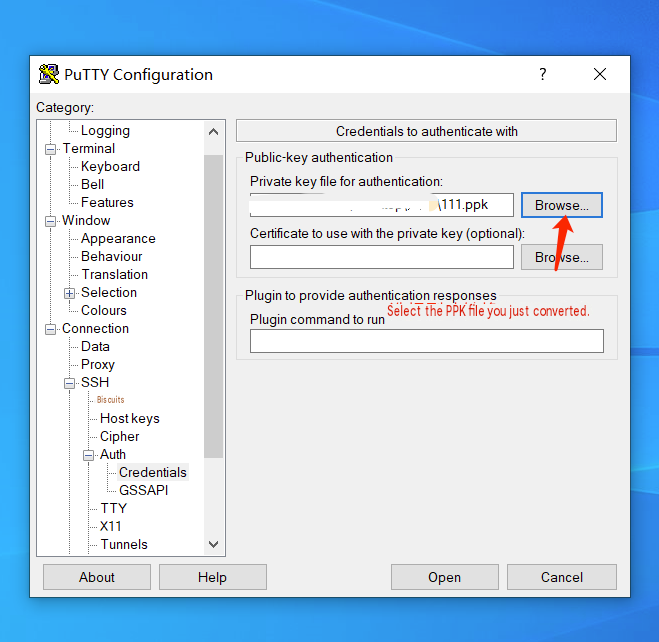
Click Open to establish the connection
How to Change Key-Based Authentication to Password Authentication (Using CentOS 9 as an Example)
1. First, connect to SSH using the key and access the command-line interface
Run the command: sudo vi /etc/ssh/sshd_config
Press I to enter insert mode and change the following configuration options to yes
PermitRootLogin yes
PasswordAuthentication yes
Press the Esc key, enter wq to save the configuration file, as shown below:
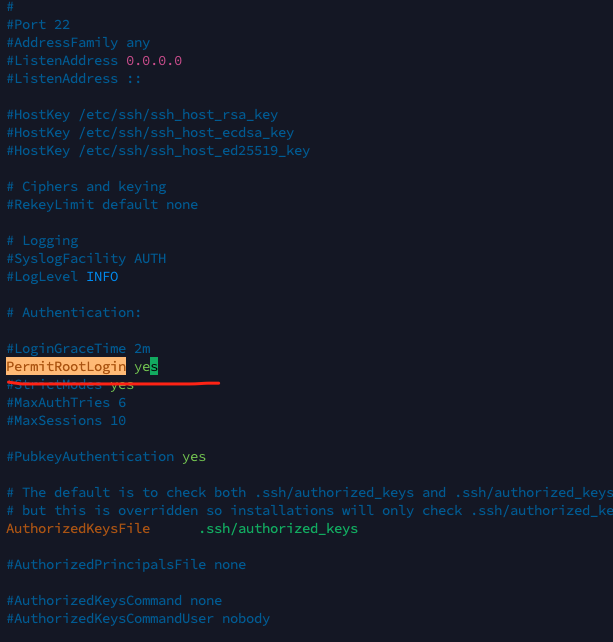
If the Linux operating system includes cloud-init, you must also modify the cloud-init extension configuration file. Check whether the extension configuration directory exists, as shown below:
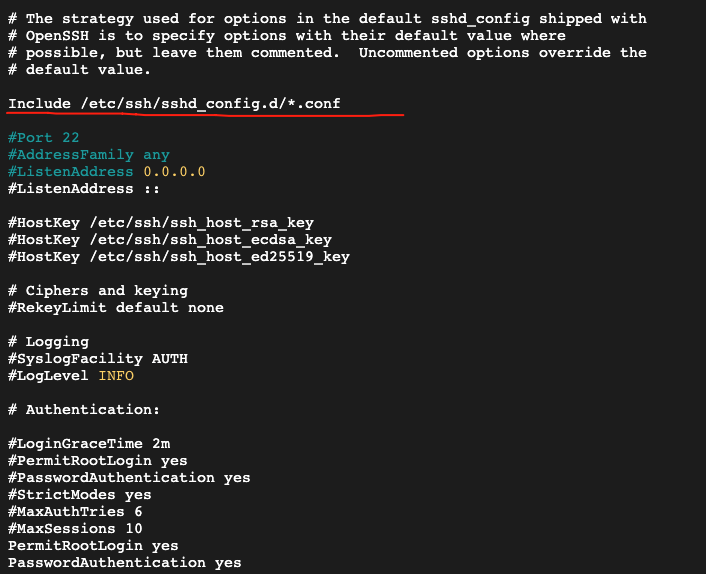
Enter the extension configuration directory:
cd /etc/ssh/sshd_config.d/
Change the PasswordAuthentication configuration option to yes in the 50-cloud-init.conf or 60-cloudimg-settings.conf file in the directory
sudo vi /etc/ssh/sshd_config.d/50-cloud-init.conf
sudo vi /etc/ssh/sshd_config.d/60-cloudimg-settings.conf
Press the Esc key and enter wq to save the changes
Run the command: sudo systemctl restart sshd
Restart the SSH service
2. Set the root password
Run the command: sudo passwd root
Enter the password
You can then log in to SSH using the password